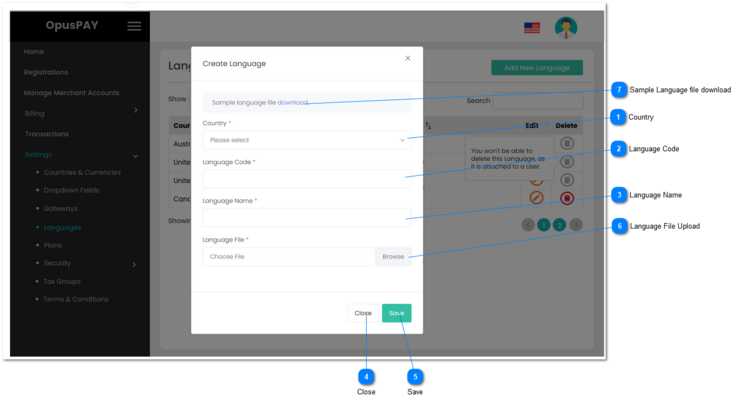
This module enables users to add or edit a language file. Screen displayed is a screenshot from byondcloud, please rename the header to Create/Edit Language.
Country
Type
Notes
Rules
Compulsory
Format
Edit
Size
Default
Error Message
Combo- Box
-
1. This should allow the user to select a Country.
2. List of Countries should come from our database of countries, states, post codes, etc. as used in byondcloud.
3. This should display an inline error message if the user clicks the Save button without populating this field.
1. This should allow the user to cancel any changes and will navigate the user to the Language screen without saving. Refer to the specifications of this screen here.
1. If the any validations fail, display the appropriate inline error message, do not save any changes and do not leave this screen.
2. If the validation check results return as successful, then save entries and navigate the user to the Languages screen. Refer to the specifications of this screen here.
1. This should allow the users to upload a new language file.
2. Once the user clicks on the "Browse" button (placed next to this field), it will show the file system of the client computer, in order to select and upload a file.
3. Once the user selects a file/document from the file system, check the file for viruses. Display popup error message with OK button and do not upload file.
4. If no virus found, populate the name of the selected file/document in the text field.
5. If the user clicks on the Open button by selecting/attaching a file/document which is of an unsupported file type (only JSON File (*.json) accepted), show an inline ERROR message.
6. IF the user clicks on the Save button, WITHOUT selecting/attaching a file/document, show an inline ERROR message.
Required
Choose file
Text
-
-
Active
3. Selected file has a potential virus, cannot upload this file. Please select another file.
1. This should allow the users to download a sample language file that lists all field names and corresponding default language values. Please refer to sample file in byondcloud for an example and generate same file type and format here.
2. Follow the same process as is done when downloading the sample language file in byondcloud (automatically download the file).